AI Girlfriend Video Generator: From Photo to Clip
Guides
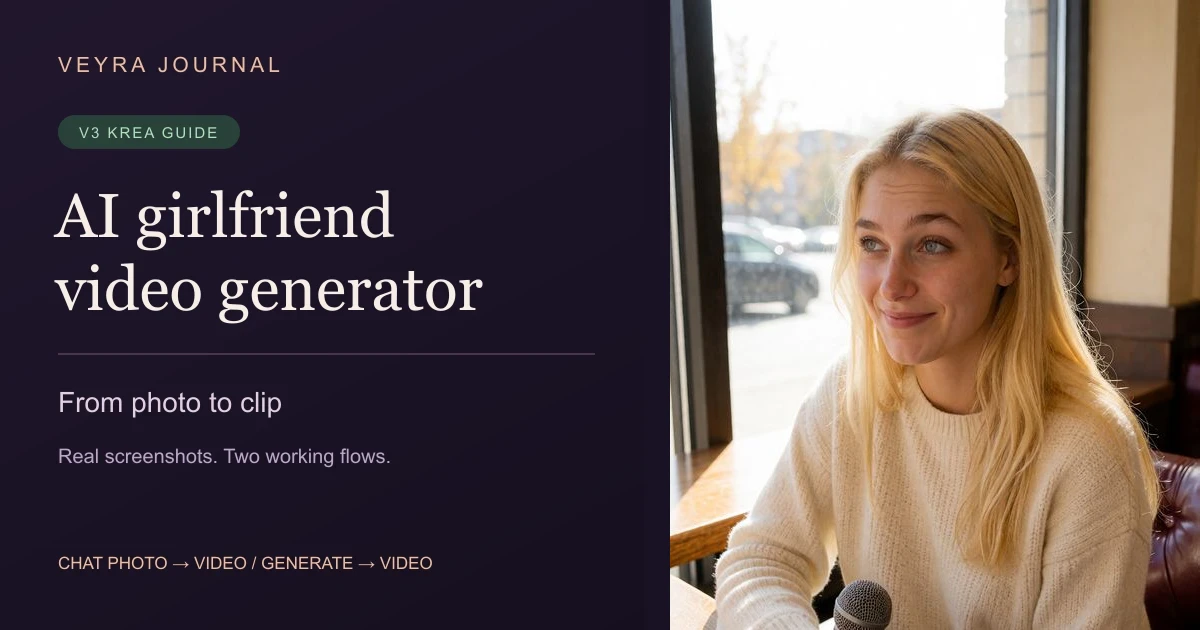
Veyra’s AI girlfriend video generator gives you two ways to make a five-second character clip. In chat, use Animate this photo beside an image you want to bring to life. On Generate, choose Videos, select a character, and describe the scene and movement you want to see.
The choice matters. Animating a chat photo starts from that exact picture. A new request on Generate can compose a different scene around your character before turning it into video. If you like her pose, outfit, and surroundings in a particular photo, start with that photo.
This walkthrough uses Alina, a fictional adult character created with Veyra’s current V3 Krea image workflow, in both routes. V1 and V2 characters use legacy image workflows; choose an Image V3 character for the examples shown here. The screenshots come from an owner demo account with creator access. Regular users need an active Plus or Max pass and enough media tokens. The creator privileges shown in the captures are specific to this demo account.
Choose the right starting point
| What you want | Where to start | What you control |
|---|---|---|
| Bring an existing chat photo to life | Animate this photo beside that image | The exact starting photo; Veyra supplies subtle motion |
| Create a fresh scene with your character | Generate media → Videos | The character, scene description, and movement prompt |
| Turn the current roleplay moment into video | The chat composer’s Generate video of this scene action | The scene established in that conversation |
The step-by-step examples below demonstrate the first two routes. The roleplay scene button is a separate shortcut: it uses the current story context rather than requiring you to select a finished photo. In Companion mode, the composer video button opens Generate instead.
Before you generate
If you want to make your own character first, follow the character-design and first-photo walkthrough. It shows the current creator controls with a fictional adult example.
Sign in, choose a fictional adult character, and check that video generation is available on your plan. The current video format is five seconds at 832 × 1216 and 20 frames per second. These are portrait clips, so choose a scene that works in a vertical frame.
A video request currently costs 200 media tokens. A standard scene photo costs 50 tokens, so generating one new photo and then animating it uses 250 tokens. If you already have the photo, the animation is a 200-token request. Images and generated videos spend the same media balance. Check current plans and media costs before submitting.
Method 1: animate a photo in chat
1. Find a photo you want to keep
Open your character’s chat and find the image you want to animate. In a roleplay chat, the camera button near the message box is labeled Generate a scene photo. It creates a photo from the scene you have established.
For this demonstration, we used a V3 photo generated from Alina’s karaoke scene. She is seated with a microphone, wearing a black dress. Inspect a photo before turning it into video: the face, visible hands, outfit, and important objects should already look the way you want.
If the story keeps putting her in the wrong location or outfit, correct that scene first. A clearer character and opening scene gives a media request a more useful starting point.
2. Use the action beside the image
Select the small video-camera action beside the chosen photo. Its label is Animate this photo. Use the action attached to the image you want, rather than the separate video action by the message box.
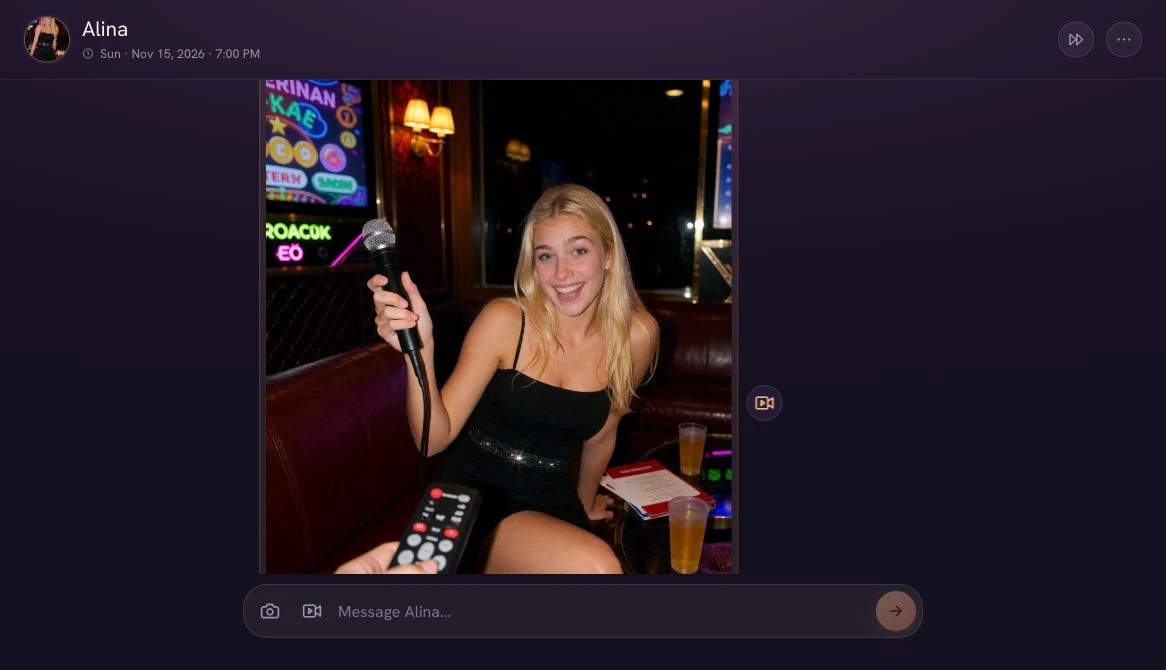
The video-camera action beside this V3-generated image animates this photo. The camera near the message box creates another scene photo.
This action submits the video request directly. It does not open a motion-prompt editor first. Veyra supplies instructions for natural, subtle movement that continues the visible moment.
3. Wait for the clip in the conversation
A Generating video… placeholder appears while the request is processing. Its percentage is an estimate, not a guaranteed countdown. Wait for the result instead of submitting the same request repeatedly.
The new animation returned to the conversation. Alina tilts her head, relaxes her wide smile, and moves the microphone toward the camera. Her blonde hair, black dress, karaoke seating, and the foreground remote remain recognizable. Facial details soften and the microphone edges change during the movement, so review the whole clip. We checked playback and its five-second duration; this is one generated example, not a promise of identical results.
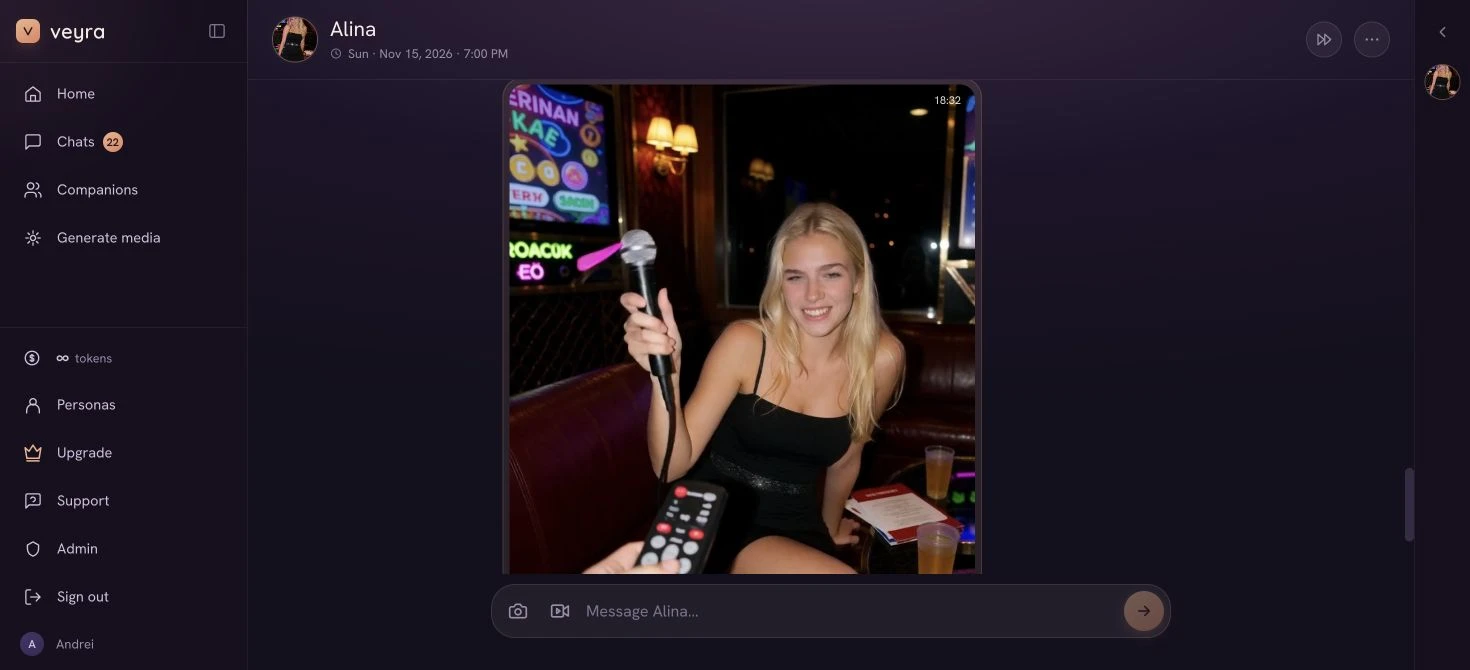
A frame from the actual delivered video. The facial expression and microphone position change during the clip.
Method 2: describe a scene on Generate
1. Switch to Videos and choose your character
Open Generate media from the sidebar, or visit Veyra’s Generate page. Select Videos and choose your character under Model. In this picker, Model means the character who appears in the scene.
Check that the selected character’s label says Image V3. The Videos view shows the current clip format and a Prompt box. Photo-resolution buttons belong to the Photos view and are not the controls for video duration.
2. Describe the place, appearance, and one small movement
We selected Alina’s Image V3 character and entered this prompt:
The same adult woman as the character reference, preserving her facial identity, blonde hair and eye color. She is seated at a cafe table beside a sunlit window, wearing a fully covered cream knit sweater. Medium portrait shot, face clearly visible, only one person. She gives a small closed-mouth smile and blinks once. Keep the camera still.
The opening sentence asks to retain the reference character’s appearance. The next sentences establish the café, sweater, framing, and a small movement. The last sentence gives the camera a clear instruction. Use appearance details that match your selected character, then replace the location, clothing, and expression to suit the scene.
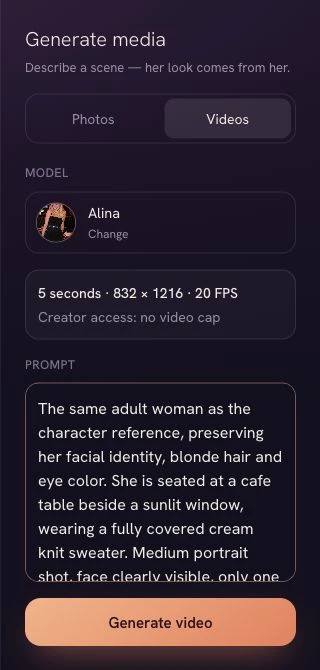
The captured owner account shows creator access. Normal Plus and Max video requests use the media-token balance described above. The prompt box scrolls; the full submitted prompt is reproduced above.
3. Submit once, then play the result
Choose Generate video. A processing card appears in the video gallery. When the clip is ready, use its playback controls to review the whole five seconds.
The café request returned a separate five-second clip. Alina turns her gaze toward the camera and settles into a small smile. Her blonde hair, cream sweater, window seat, and microphone remain visible. The framing and facial expression shift during the movement, so the result is broader than a single blink. We compared the starting image with her character portrait and reviewed the finished video, rather than treating a completed request as proof of perfect likeness.
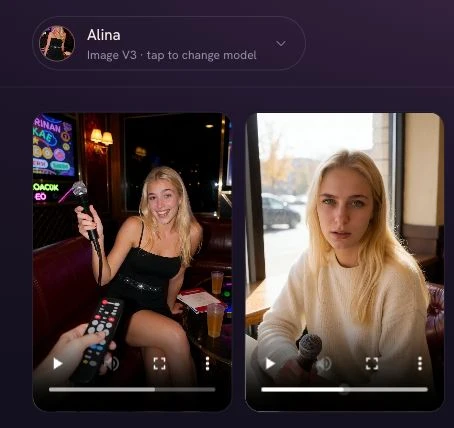
The café clip on the right is the actual Generate result, paused at about 2.48 seconds. The new chat animation is on the left; both appear in the character’s shared Videos gallery.
These examples use V3-generated starting images. They are individual outputs, not a success-rate test; review both the character’s appearance and the requested movement before keeping a clip.
For this route, Veyra first creates a scene image using the selected character’s image workflow and portrait as its reference. With an Image V3 character, that is a V3 Krea image. After that image passes the required checks, Veyra uses it as the starting frame for the video. Your prompt describes the new scene and motion. If your goal is to preserve the exact karaoke photograph shown earlier, use its chat Animate action instead.
For this walkthrough, we also saved the actual character portrait and prepared café image for comparison:
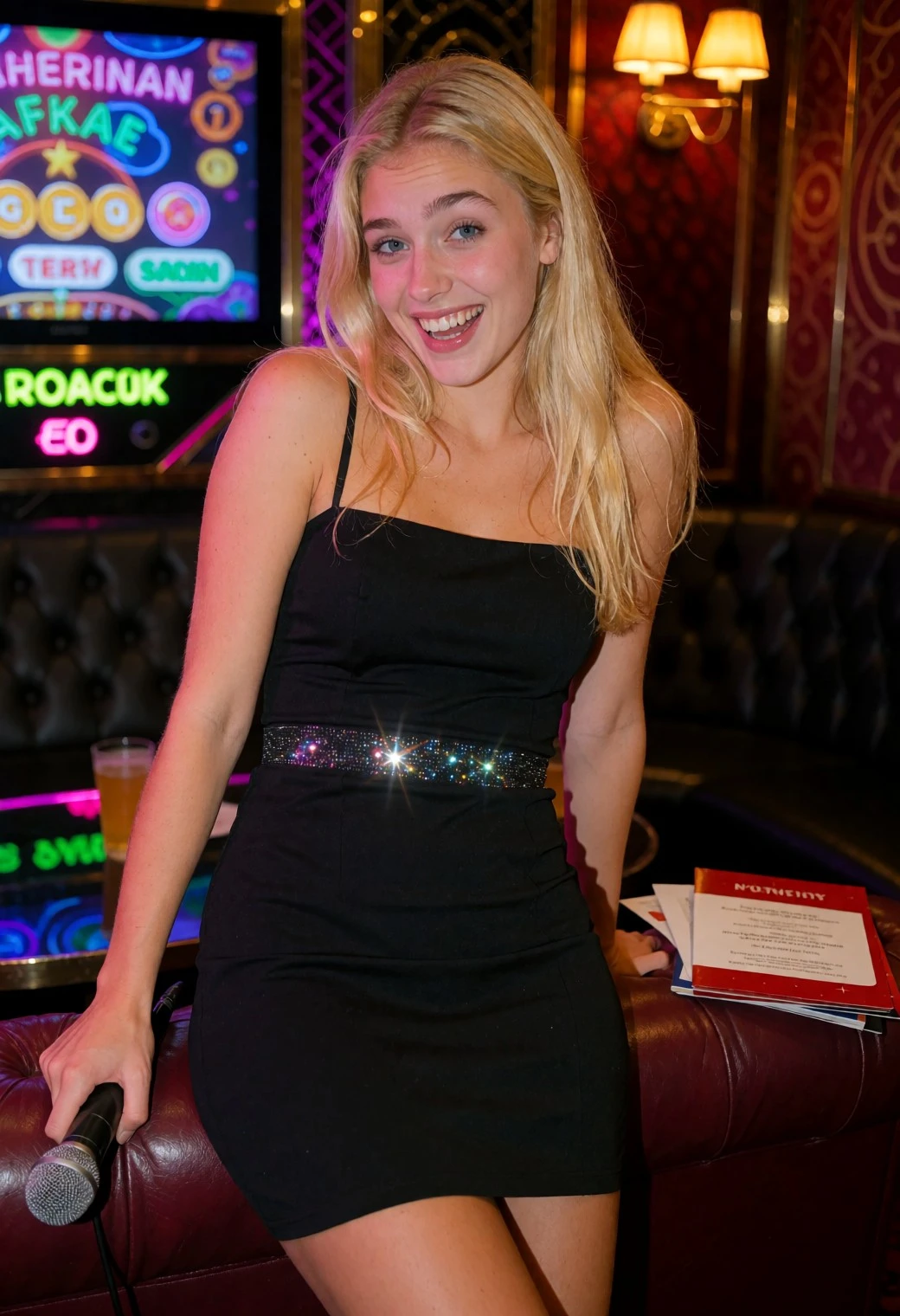
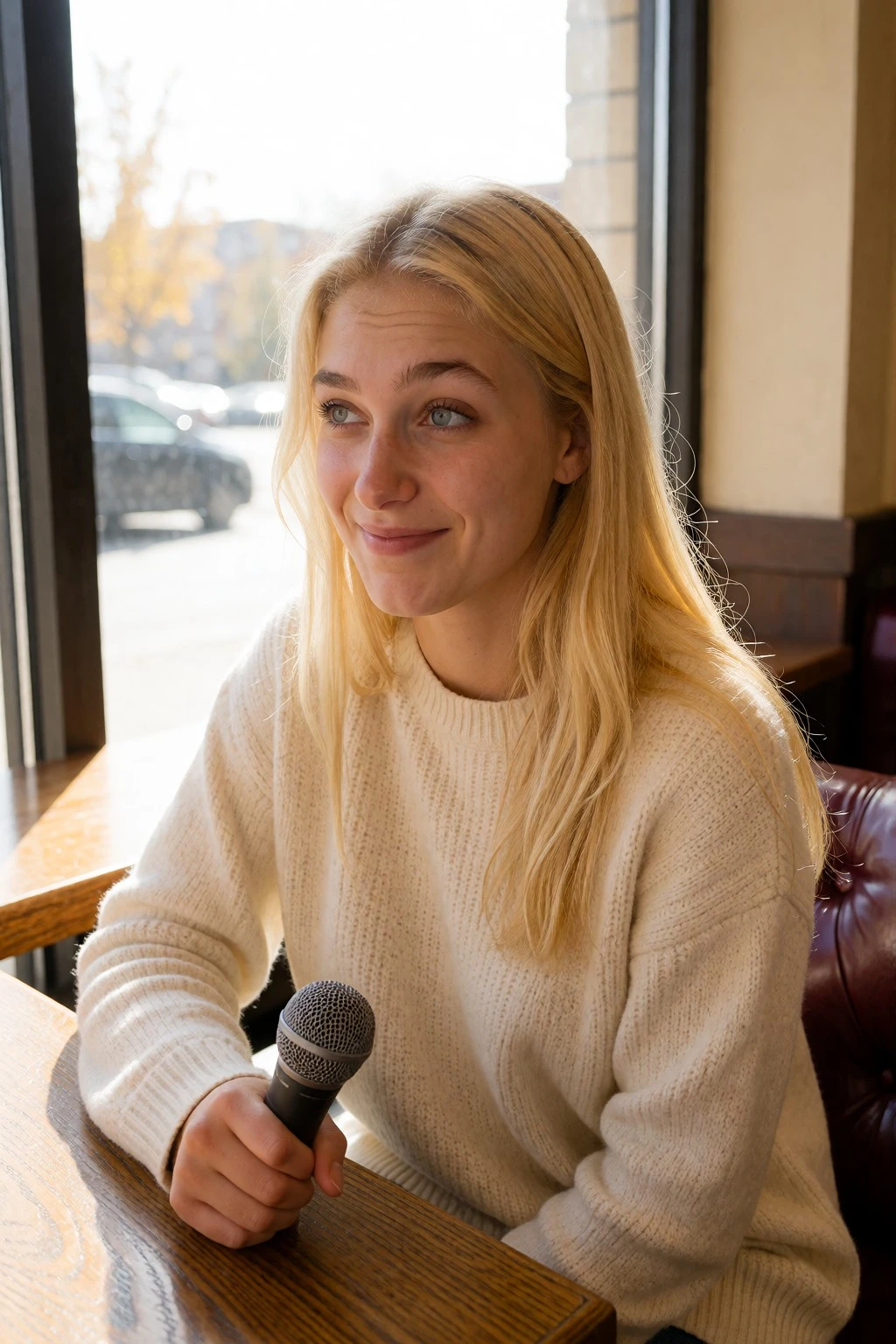
Generate prepares the starting image automatically; this flow has no separate first-frame approval step. The café image changes her outfit and surroundings while carrying over the microphone from the portrait, even though the prompt did not request one. Reference details can persist as well as change.
Keep the first movement simple
A short clip gives a movement little time to develop. Start with a blink, a small head turn, a gentle smile, or one clear gesture. Describe where the motion ends, and specify a still camera if you want to keep attention on her face.
For a scene you have already established, a prompt to try is:
She looks toward the camera, gives a small smile, then settles back into her original pose. The camera remains still.
That is a writing example, not another generation from this demonstration. Start with a small action before asking for walking, a camera move, several props, and a change of location in the same clip.
Watch the full result before deciding to keep it. Look at the eyes, fingers, clothing edges, and objects she touches. A good opening frame does not guarantee that every later frame will look right. These examples show individual outputs, not a reliability benchmark.
FAQ
Can I generate an AI girlfriend video for free?
The standard Free plan does not include generated-video access. Plus and Max support video requests, which spend media tokens. The creator account used for these screenshots is an exception. See the current pricing page for access and allowances.
Can I choose a longer clip here?
The app workflow shown here produces five-second clips. The Generate view does not offer a duration selector in this walkthrough. For a longer sequence, plan separate shots and review how they fit together.
Is this a live video call or a Live Action?
This workflow creates a short generated clip after you submit a request. Premade Live Actions are separate character-specific clips with their own access and unlock costs. Neither should be described as a live video call.
Where do I find the finished video?
A photo animated from chat returns to that conversation. Requests made on Generate appear in its Videos gallery. Choose the character there to narrow the displayed results.
Why can the character look different in a video?
The starting image matters. Generate composes a new scene before animating it, so a likeness change in that image can carry into the clip. Motion can introduce further changes. Choose an Image V3 character, keep appearance instructions consistent with her portrait, and review her face throughout the video. Animating a chat photo you already like gives you a specific starting image; it still does not guarantee perfect consistency.
What if the scene image fails the adult-image check?
A new-scene video needs a usable starting image. If that generated image fails the adult-image check, the video stops before animation. Choose a clearly adult character or revise the scene. A rejected scene image does not mean that your token balance was too low.
If you are planning several images and clips, use the media-budget guide to separate access fees from the tokens you intend to spend. When you are ready to make a new scene, open Generate in Veyra.
Create something you want to see.
Make a fictional adult character, explore images and chat, and choose a paid pass when you want generated video.
Start free