How to Create Your Own AI Girlfriend: From Character Design to First Photo
Guides
To create an AI girlfriend, choose her adult appearance, give her a name and personality, decide how she knows you, and set the opening scene. In Veyra, those choices lead to a generated character portrait. You can then continue the conversation and request new photos of her.
This guide shows how to create an AI girlfriend in Veyra with Nora Vale, a fictional 29-year-old woman. We’ll choose her curly brunette hair and hazel eyes, give her an affectionate personality, and start with an afternoon coffee together. The screenshots show Veyra’s current character creator. All characters in this guide are fictional adults.
Create your own AI girlfriend in Veyra →
Start with a character you can picture
Choose a few details that belong together. A face, a way of speaking, and a setting give you enough to begin. You can build a longer story once you know what you enjoy about the character.
For this walkthrough, the starting idea is simple: Nora is your affectionate girlfriend, meeting you at a quiet café after your day apart. Her look and opening scene follow that idea.
| Part of the character | Our example | What to decide for yours |
|---|---|---|
| Adult age | 29 | An adult age that fits the character |
| Appearance | Curly brunette hair, hazel eyes, average build | The visible traits you want to recognize |
| Personality | Lover | The tone you want in her conversation |
| Relationship | Girlfriend | Whether you already know each other |
| Opening | A window seat in a quiet café | Where you meet and what is happening |
Treat these as choices for one example. Your character can have a different look, a more reserved personality, or an opening where you have just met.
1. Open the creator and choose her look
Open Veyra’s character creator. You can begin choosing the character while browsing as a guest. Follow the prompts displayed when you reach portrait creation and saving.
The appearance screens take you through ethnicity, adult age, hairstyle, hair color, eye color, body type, and breast size. Height is available under More details near the end of the appearance choices.
For Nora, we selected Caucasian, age 29, Curly hair, Brunette, Hazel eyes, Average body type, and Medium breast size. We left the optional height at its default.
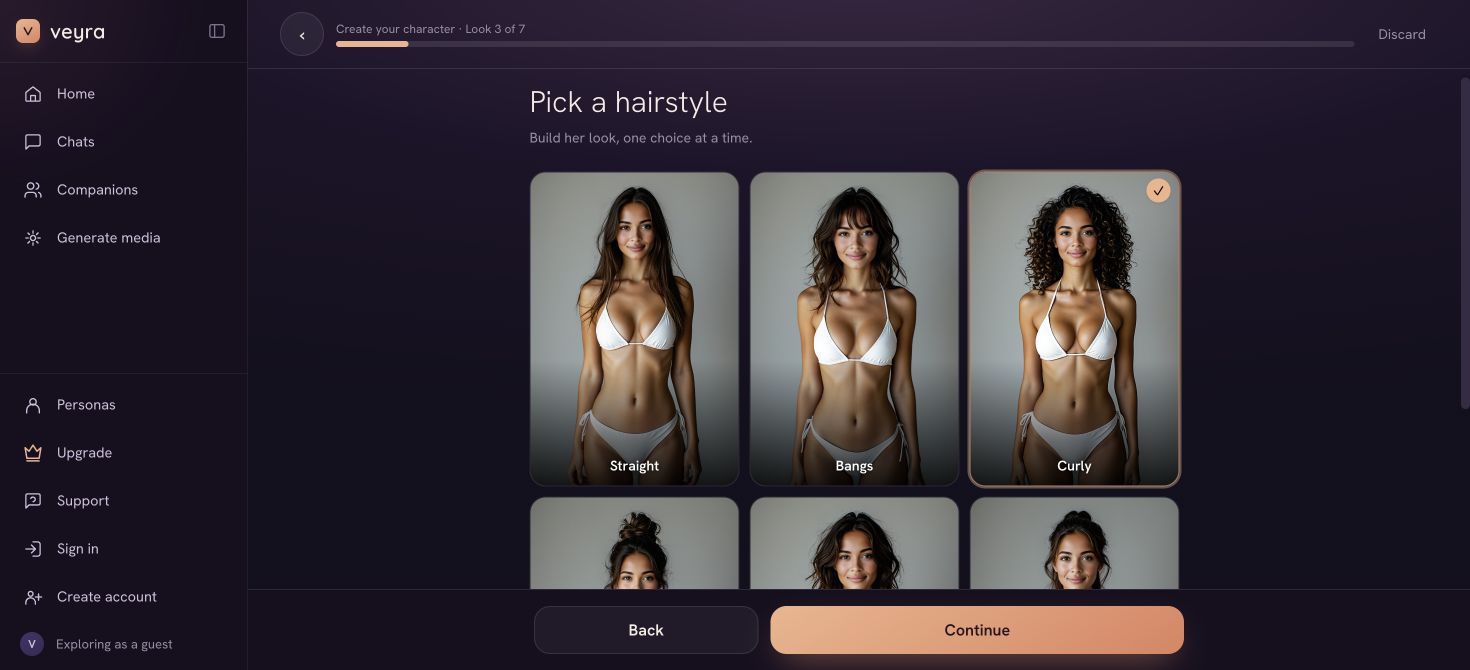
Choose a hairstyle, then continue to hair and eye color. The option pictures illustrate each choice; they are not the finished portrait of your character.
Check each selection before continuing. If you picture dark curls and hazel eyes, keep those choices consistent when you describe her later. A photo request that suddenly asks for straight blonde hair is asking for a different appearance.
2. Give her a name and personality
On Pick her personality, enter a name and choose a personality. The screen also lets you specify where she is from and offers a random-name button if you want a starting point.
We named our character Nora Vale, entered Finland, and selected Lover. For this example, the goal is an affectionate girlfriend and a relaxed opening. Other available choices include Shy, Confidant, Temptress, and Queen.
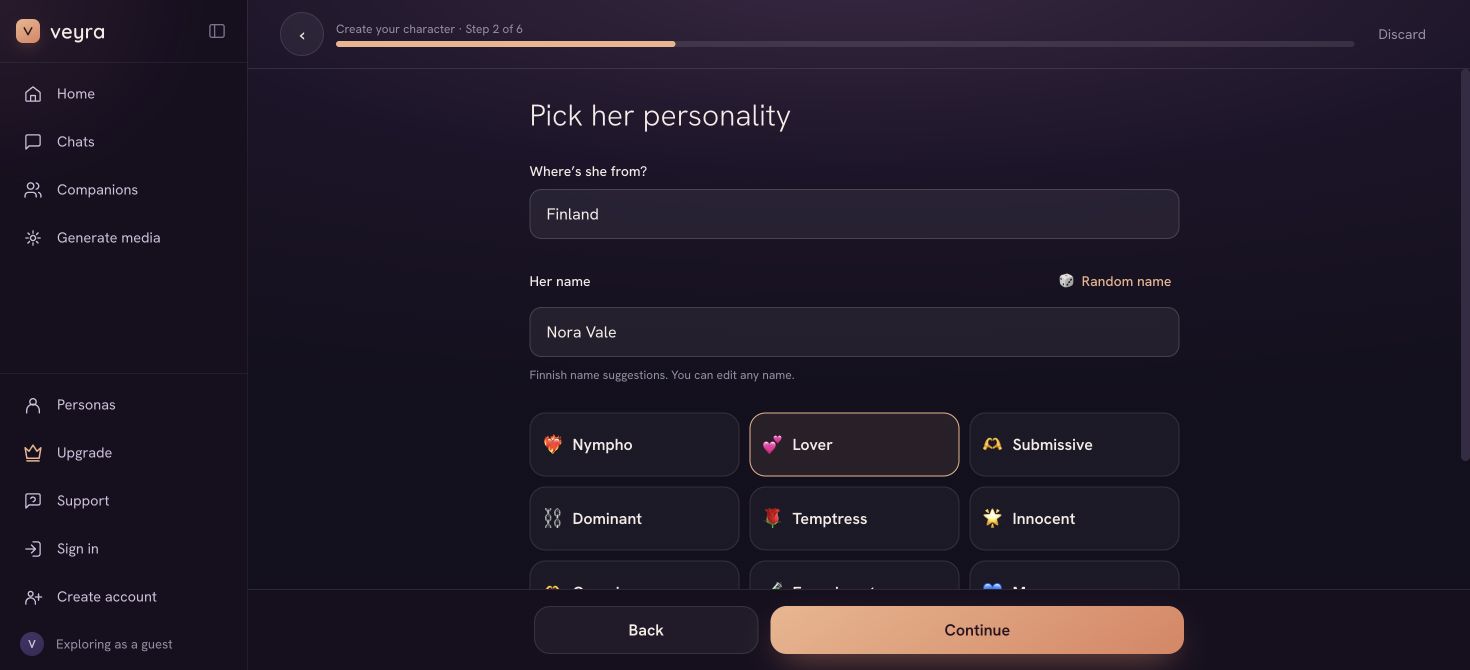
The name identifies the character; the personality choice helps establish her conversational tone.
Pick the behavior you want to interact with. If you want a quiet first meeting, a reserved character gives you a different starting point from someone confident and openly flirtatious. These settings guide the experience, but an AI reply can still miss the tone you intended.
3. Choose how she knows you
The next screen is Pick your relationship. We selected Girlfriend, so the opening can assume an existing relationship. A first encounter would call for a different relationship and a scene that introduces you.
For some relationship choices, Veyra also asks how quickly she should warm up to you. Follow the controls shown for your selection rather than assuming every relationship has the same setup.
An adult-preferences screen follows. You can continue with none selected, as we did for this café example. The character’s look, personality, and opening already give us a clear place to start.
4. Write an opening that gives her something to do
On Pick your opening, choose one of the suggested scenes or select Write my own. A custom opening has two fields: Where does it open? and The opening moment.
We entered this location:
A quiet cafe by the window
And this opening:
Nora Vale, 29, is your girlfriend. She is sitting alone beside the window in a quiet cafe, wearing an olive-green knit sweater and blue jeans. It is late afternoon, with soft natural light on her face. When you arrive, she smiles, sets her book aside, and asks which part of your day she needs to hear about first.
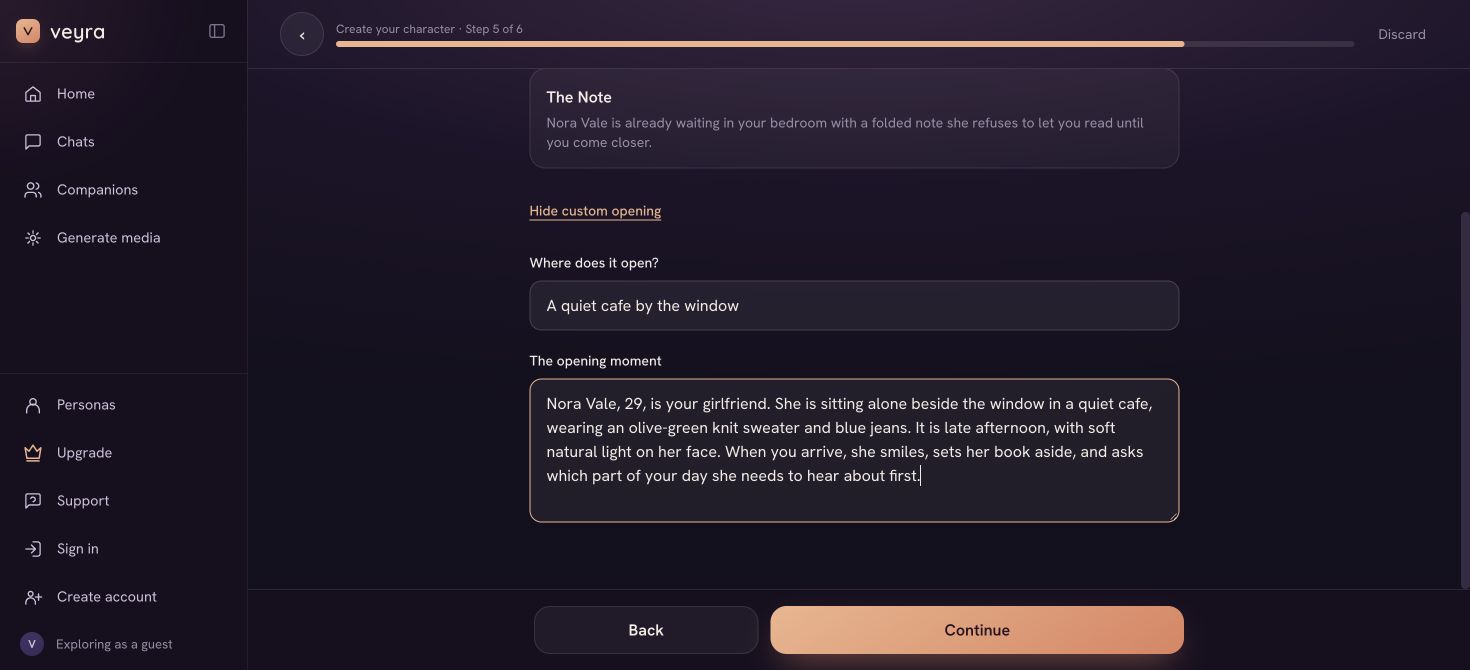
The location, outfit, light, and opening action describe one coherent moment.
This gives the scene visible details and leaves you a way to respond. You could tell her about your day, ask about the book, or suggest taking your coffees outside. It also makes your photo idea easier to describe later: a woman by a café window, wearing a green sweater.
Keep the opening short enough to check for contradictions. If she is waiting in a café, avoid adding an unrelated beach outfit or a bedroom location in the same paragraph. For a character with more history, use the AI character backstory guide to connect that history to the moment where you meet.
5. Review her details and create the portrait
The review screen brings together her personality, relationship, preferences, and opening. Read them once more. Check her name and make sure the relationship matches what you wrote in the scene.
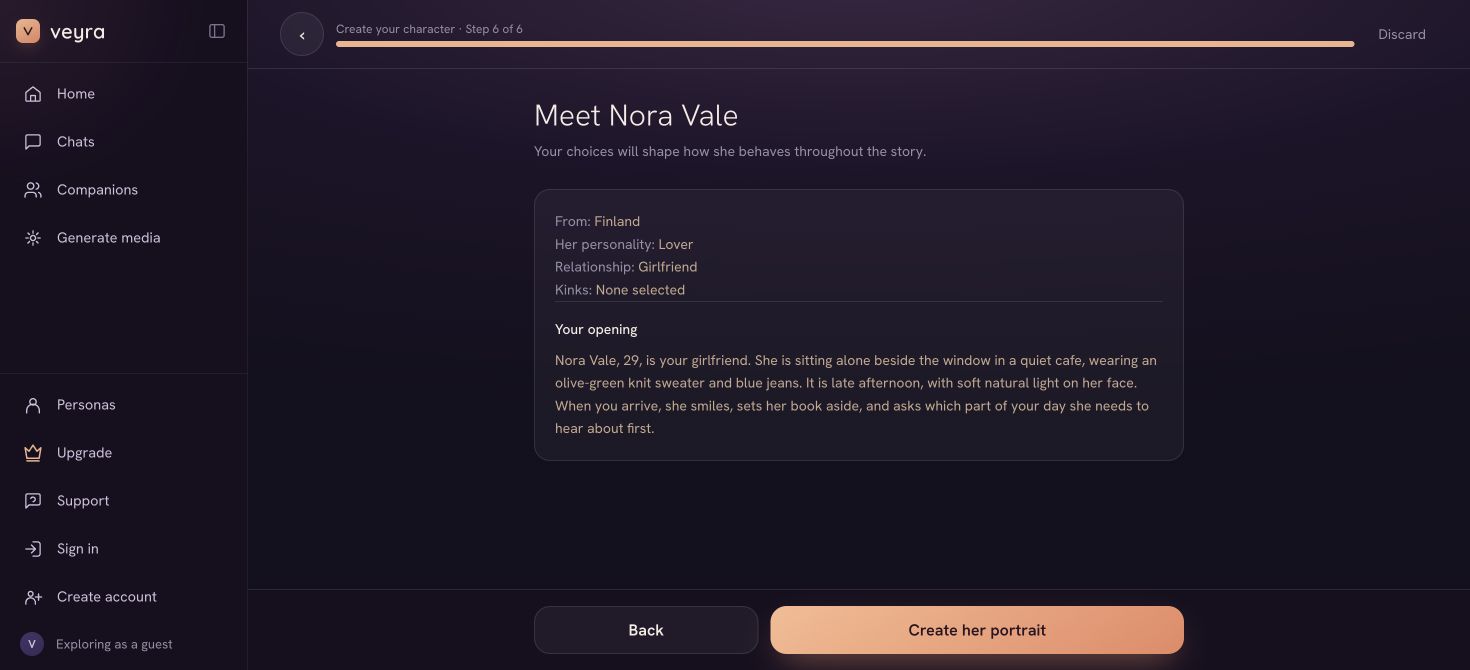
This is the final review before requesting the portrait. Use Back if you want to revise a choice.
Select Create her portrait when the setup is ready. Follow any verification or account prompts the app displays, then wait for the generation to finish. Avoid submitting the same request repeatedly while it is processing.
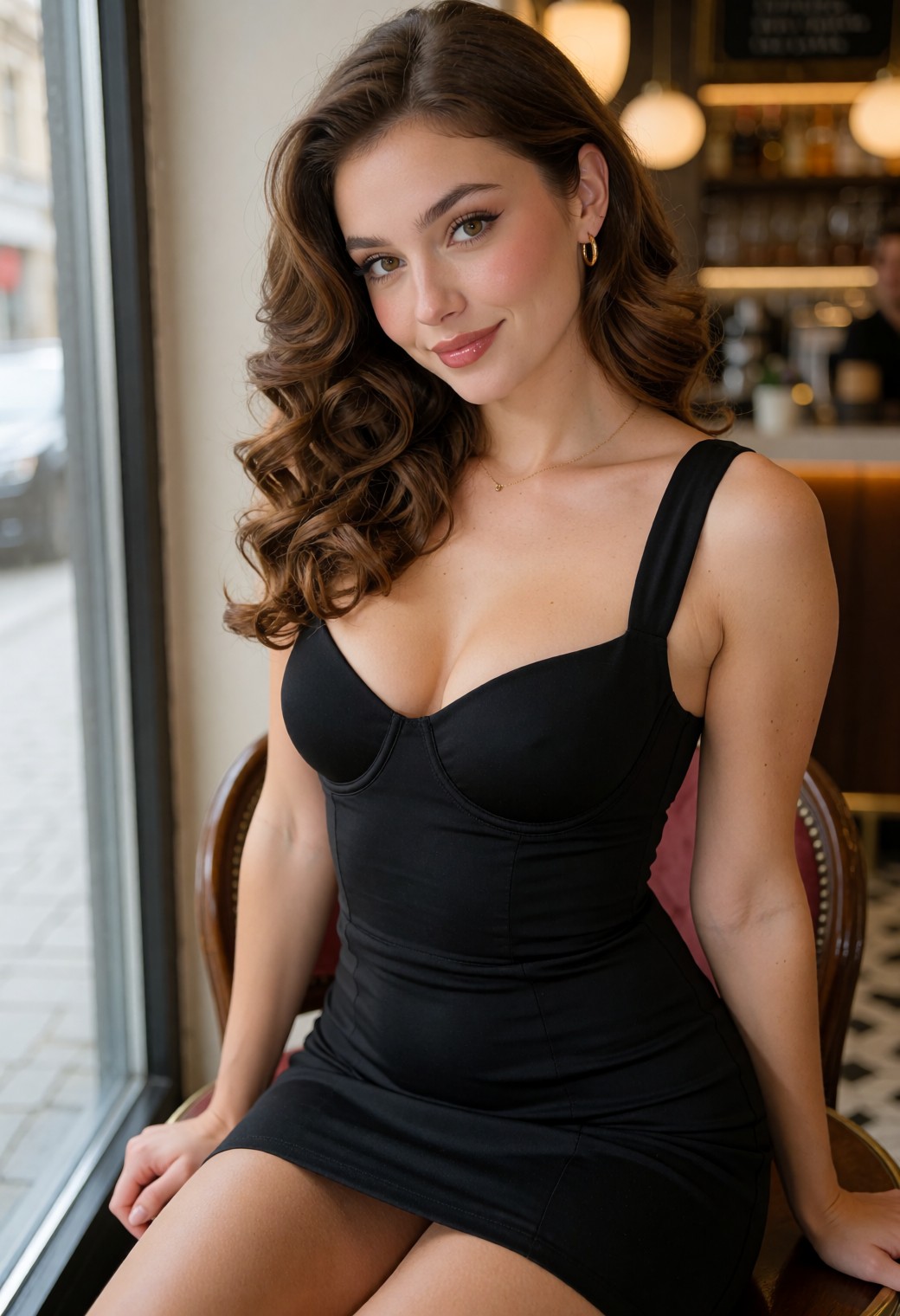
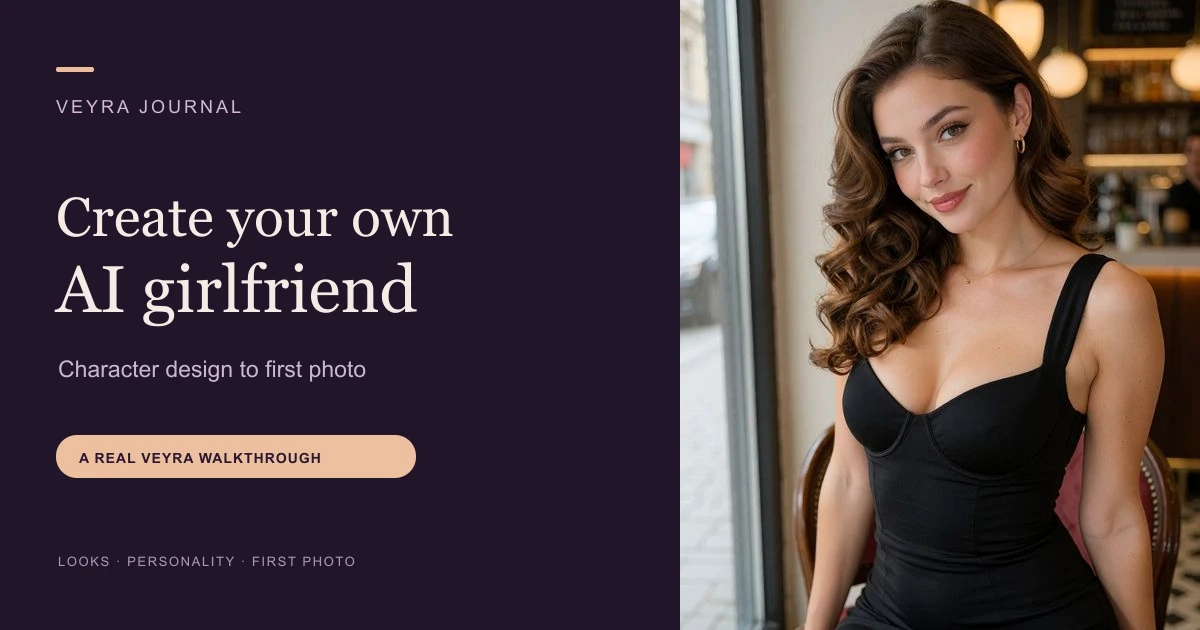
Nora’s V3 demo portrait, with styled brunette curls, defined eyes, lip gloss, and a fitted black dress in the café setting.
For this demo image, we dressed Nora up in a fitted black dress, with styled curls, makeup, and flattering window light. That is a different outfit from the green sweater in our opening. The opening establishes the story; it does not guarantee that the creation portrait will use every scene or clothing detail. A photo request gives you another opportunity to describe the image you want.
Demo disclosure: our first guest-preview attempt failed. The Veyra team generated this revised portrait separately using Nora’s selected appearance and a detailed café-scene prompt. These screenshots and the image document the character design and demo result, not a successful uninterrupted guest-preview session.
Inspect the finished portrait before keeping it. Check her adult appearance, hair, eyes, visible hands, clothing, and surroundings. The controls describe the character you want; a generated result can still vary. A clear face and a portrait you like give you a useful reference for later photos.
Use the same steps with your own choices. Design your character in Veyra →
6. Give her first new photo one clear scene
Once your character is saved and photo generation is available on your account, choose one scene you want to see. Describe the clothing, location, framing, and expression together. Keep her lasting appearance consistent with the character you created.
For a café scene like Nora’s, a photo description to try is:
Nora, the same adult woman as her character portrait, wearing an olive-green knit sweater and blue jeans, sitting beside a café window in late-afternoon light. A relaxed smile, face clearly visible, framed from her head to her waist, only one person in the photo.
This is a suggested next-photo prompt, not a second generated result from this walkthrough. Review what the image actually contains before asking for more variations. If an important detail is wrong, correct that detail in your next request instead of adding several new locations and actions at once.
When you have a photo you want to animate, follow the AI girlfriend video walkthrough. It shows the difference between animating an existing photo and generating a fresh scene for a short clip.
What to check before spending more
Character creations and media tokens are separate allowances. Veyra’s current pricing page explains what your plan includes, the preview portrait included with a creation, and the token costs of additional photos and videos.
Check the cost shown before submitting a media request. More generations give you more outputs to review; they do not guarantee that every face, hand, outfit, or scene detail will match your request.
FAQ
Can I create my own AI girlfriend for free?
Veyra offers a Free account with a limited creation and media allowance, and you can start designing a character as a guest. Check the current free allowances and follow the account and verification steps shown in the app. Free access does not mean unlimited photos or videos.
Do I need to write a long backstory first?
You can begin with her look, personality, relationship, and a short opening. Nora’s example gives her a place, an outfit, and something to say. Add more history when it contributes to the conversation you want.
Will every photo look exactly like the first portrait?
Appearance can vary between generated images. Keep your descriptions consistent with the character, avoid contradictory instructions, and inspect each result. The first portrait is a reference, not a guarantee of identical features in every image or video.
Can I turn her photo into a video?
Veyra supports short generated character videos on eligible paid plans. Video generation spends media tokens. See the photo-to-video guide for actual examples and the controls used in each flow.
Start with a character you want to see and a scene you want to enter. Create her in Veyra →
Create something you want to see.
Make a fictional adult character, explore images and chat, and choose a paid pass when you want generated video.
Start free